Isaac Sim on RTX 5090 (Laptop) — Ubuntu Setup for Max Performance
Complete guide to achieving stable, high FPS with NVIDIA Isaac Sim 5.1 on RTX 5090 Laptop GPU. Real-world benchmarks showing 115-120 FPS idle and 60 FPS during simulation with troubleshooting tips.
If you're running NVIDIA Isaac Sim 5.1 on a GeForce RTX 5090 Laptop GPU (24GB VRAM) and experiencing low FPS, poor performance, or random renderer crashes, this guide walks through the exact setup + verification workflow to achieve stable, high FPS and maximum performance.
This is written as a practical checklist: install basics → verify the GPU path is correct → apply performance knobs → benchmark → troubleshoot.
Table of Contents
- TL;DR (what worked)
- Test Machine Specs
- Install Essentials
- NVIDIA Driver Setup
- Force NVIDIA GPU (PRIME)
- Use Xorg
- Isaac Sim Install
- Common Crashes & Fixes
- Performance Optimization
- Benchmark Results
- Measuring RTF
- Troubleshooting
- Expected Performance Summary
- Validation Commands
- Contributing & Improvements
TL;DR (what worked)
- OS: Ubuntu 22.04.5 LTS
- Kernel: 6.8.0-90-generic
- GPU driver: NVIDIA 580.95.05 (CUDA reports 13.0)
- Isaac Sim: 5.1.0 ("Isaac Sim Full")
- Display stack: Xorg (not Wayland)
- PRIME mode:
prime-select nvidia(force dGPU for desktop + Isaac)
Observed performance (interactive):
- Empty / light stage: ~115–120 FPS
- Warehouse stage + robots loaded: ~60 FPS
- Heavier warehouse with more robots: stayed stable for long runs (no 1–2 minute crash)
Screenshots from the test run
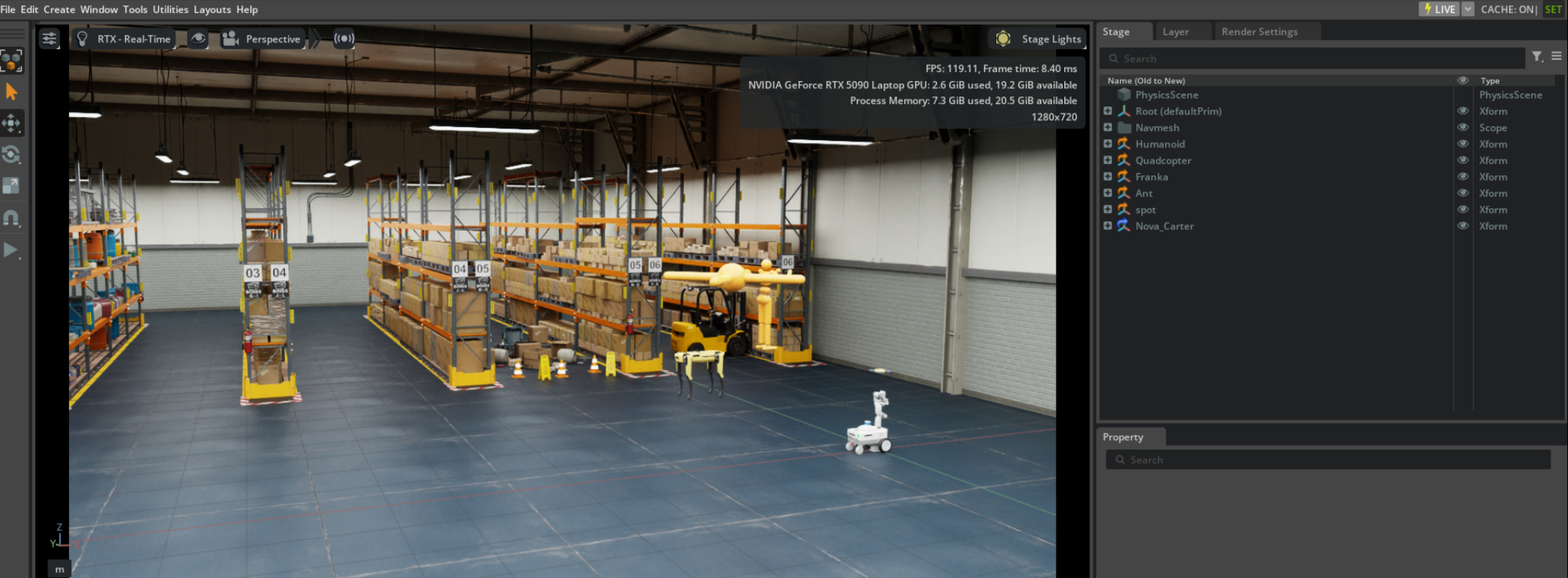
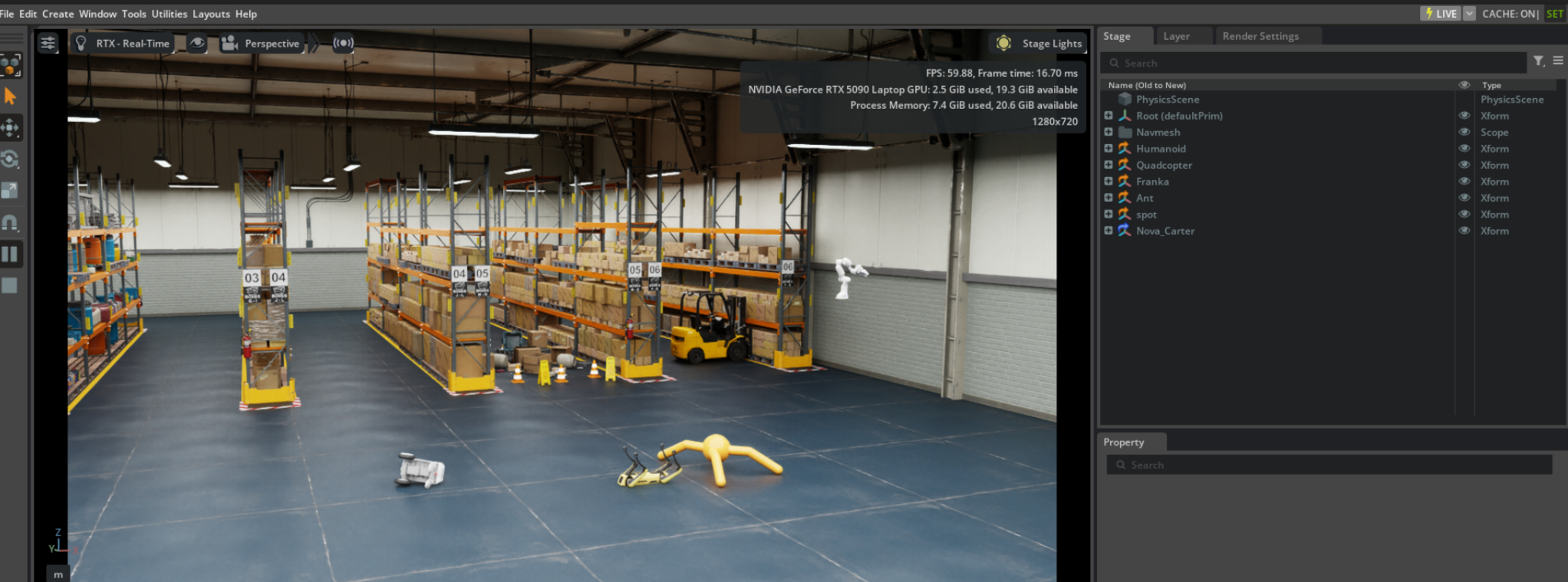
These screenshots were captured with the on-screen performance HUD enabled (showing FPS + GPU/CPU memory) and RTX – Real-Time rendering.
Rule-of-thumb for Real Time Factor (RTF):
- If your sim is configured for 60 Hz physics and you're holding ~60 FPS, you're typically near RTF ≈ 1.0.
- If you dip to ~45 FPS during heavy moments, expect RTF ≈ 0.75 for a 60 Hz target (unless your sim is decoupled from rendering).
(How to measure RTF properly is included below.)
The test machine (reference)
This matters because laptop GPUs + hybrid graphics can behave differently than desktop cards.
- GPU: NVIDIA GeForce RTX 5090 Laptop GPU (24GB VRAM)
- CPU: Intel Core Ultra 9 275HX
- RAM: ~32 GB
- Monitors: internal 2560×1600 @ 240 Hz + external 1920×1080 @ 60 Hz
1) Install the essentials (so you can verify the graphics path)
Packages (Ubuntu)
Install these so you can run the exact validation commands:
bashsudo apt update sudo apt install -y mesa-utils vulkan-tools
mesa-utilsgives youglxinfovulkan-toolsgives youvulkaninfo(useful if Vulkan ICD is broken)
2) Install NVIDIA driver (and confirm it's the one actually in use)
Confirm driver version
After installing your NVIDIA driver, verify:
bashnvidia-smi
Expected (example from this setup):
- Driver Version: 580.95.05
- CUDA Version: 13.0
- GPU: RTX 5090 Laptop GPU
If nvidia-smi fails, Isaac Sim will not be stable.
Tip: if Secure Boot is enabled, your NVIDIA kernel module can fail to load unless it's signed. If
nvidia-smifails after a reboot, Secure Boot is one of the first things to check.
3) Force the system to use the NVIDIA GPU (PRIME) — this was critical
Laptop hybrid graphics is the #1 source of "it runs…but crashes" issues. The goal is:
- The desktop session renders on NVIDIA
- Isaac Sim uses NVIDIA for OpenGL/Vulkan
glxinforeports NVIDIA as the OpenGL vendor
Check PRIME mode
bashsudo prime-select query
Force NVIDIA mode
bashsudo prime-select nvidia sudo reboot
Verify OpenGL is truly NVIDIA
bashglxinfo -B | sed -n '1,50p'
You want to see:
direct rendering: YesOpenGL vendor string: NVIDIA CorporationOpenGL renderer string: NVIDIA GeForce RTX 5090 Laptop GPU ...- A modern
OpenGL core profile version(4.6 in this case)
Verify Isaac + desktop are on the GPU
bashnvidia-smi
It's normal to see processes like Xorg / gnome-shell listed using some VRAM. That's good: it means the desktop is on NVIDIA.
4) Use Xorg (not Wayland)
For Isaac Sim on Linux, Xorg tends to be more stable than Wayland on many setups.
How to check
bashecho $XDG_SESSION_TYPE
- If it prints
x11→ you're on Xorg ✅ - If it prints
wayland→ consider switching to "Ubuntu on Xorg" at the login screen
5) Isaac Sim install (quick notes)
Most people install Isaac Sim via Omniverse Launcher or a downloaded package. In this setup, Isaac Sim lived at:
~/workspace/isaacsim-5.1.0
A direct kit launch looks like:
bash./kit/kit ./apps/isaacsim.exp.full.kit
Or use the provided launch script if you have it (varies by install).
6) The crashes we hit (and why the fix above mattered)
Symptoms
- Scene loads fine
- FPS can be decent initially
- When pressing Play or moving robots, it segfaults within 1–2 minutes
The log pattern
- Isaac Sim crash reporter triggers
- Stack trace includes
libnvidia-glcore.so.580.95.05 - Example:
Segmentation fault (core dumped)
This strongly suggests the crash is happening inside the NVIDIA GL stack — often triggered by:
- hybrid graphics misrouting (iGPU/dGPU confusion),
- display server edge cases,
- shader/cache instability in certain configs.
What fixed it in practice:
Ensuring the system was truly running on the NVIDIA GPU (prime-select nvidia + OpenGL vendor verification) and keeping the session on Xorg.
Benign warnings you can ignore
You may see warnings like:
Damping attribute is unsupported for articulation joints and will be ignored
These warnings showed up for the Ant articulation joints and are not usually crash-causing.
7) "Max performance" knobs that actually matter
A) Keep an eye on GPU clocks/power while running Isaac
A simple live monitor:
bashwatch -n 1 'nvidia-smi --query-gpu=pstate,clocks.gr,clocks.mem,pci.link.gen.current,pci.link.width.current,power.draw,utilization.gpu,memory.used --format=csv'
In my stable run (warehouse + multiple robots), I saw roughly:
- Power: ~70–97 W
- P-state: mostly P2 / P4
- Graphics clock: ~1500–2000 MHz
- Memory clock: ~9001–14001 MHz
- VRAM usage: ~4.2 GB in the tested stage
- GPU util: ~30–46%
Note: laptop firmware can cap power/clocks depending on AC power, thermal headroom, and vendor performance profiles.
B) Prefer "RTX Real-Time" for interactive work
For interactive simulation + debugging, RTX Real-Time typically gives you much higher FPS than heavy path tracing.
C) Watch viewport resolution
Even on a strong GPU, viewport resolution can matter a lot. In my testing, a 1280×720 viewport was very smooth. Higher resolutions can reduce FPS quickly.
D) Don't benchmark with "everything on"
Turn off heavy sensors / high-frequency RTX sensors while testing stability:
- high-res cameras
- RTX LiDAR at high FPS
- expensive post-processing
Add them back once the base sim is stable.
8) Benchmarks: what FPS/RTF to expect (with this exact setup)
Scene A: "Warehouse / stage" (light to moderate)
Observed:
- ~115–120 FPS when idle / not playing
- ~60 FPS while sim is playing
Scene B: Larger warehouse + more robots
Observed:
- Stable long runs (no immediate crash)
- FPS depends on robot count + sensors, but remained comfortably interactive
9) How to measure Real Time Factor (RTF) correctly
RTF is not the same as FPS. FPS is rendering speed; RTF is simulated time / real time.
A simple approximation (when physics is tied to the frame loop)
If your physics target is 60 Hz (dt = 1/60 = 0.01667s) and your average frame time is:
- 16.7 ms → RTF ≈ 1.0
- 22.2 ms (≈45 FPS) → RTF ≈ 0.75
- 33.3 ms (≈30 FPS) → RTF ≈ 0.5
The accurate way
Use Isaac Sim's built-in performance metrics / statistics overlay (or a scripted logger) to read:
- simulation dt
- physics step time
- render time
- sim time vs wall time
For automated RTF logging, consider adding a custom Python extension to Isaac Sim that logs these metrics to a CSV file during benchmark runs.
10) Troubleshooting checklist (fast)
❌ OpenGL vendor is NOT NVIDIA
Fix:
sudo prime-select nvidia- reboot
- re-check
glxinfo -B
❌ Isaac runs, but crashes when pressing Play / moving robots
Fix (try in this order):
- Confirm Xorg session (
echo $XDG_SESSION_TYPE) - Confirm NVIDIA OpenGL path (
glxinfo -B) - Confirm desktop is on NVIDIA (
nvidia-smishows Xorg/gnome-shell) - Test a clean run (no heavy sensors)
- Optional: reset Isaac user config (starts fresh)
bash
./kit/kit ./apps/isaacsim.exp.full.kit --reset-user
⚠️ Crash reporter GUI shows "exited with code 127"
Note: This usually means the crash reporter GUI can't launch due to missing runtime deps. It does not cause the crash; it just prevents the nice GUI dialog from appearing.
11) Expected Performance Summary
Based on the configuration described in this guide:
"On Ubuntu 22.04.5 (kernel 6.8) with NVIDIA driver 580.95.05 and Isaac Sim 5.1.0, the RTX 5090 Laptop GPU delivers ~115–120 FPS in a light warehouse stage and ~60 FPS while the sim is playing with robots loaded. With a 60 Hz physics target, this achieves near real-time performance (RTF ≈ 1.0) for moderate scenes. Heavier scenes may dip below RTF 1.0 depending on robot count and sensor complexity."
Appendix: The exact validation commands I ran
bashsudo prime-select query glxinfo -B | sed -n '1,50p' nvidia-smi watch -n 1 'nvidia-smi --query-gpu=pstate,clocks.gr,clocks.mem,pci.link.gen.current,pci.link.width.current,power.draw,utilization.gpu,memory.used --format=csv'
Contributing & Improvements
This guide is open to contributions! Potential enhancements:
- Automated benchmark script - A Python script that logs FPS, physics step time, RTF, and scene complexity
- Additional GPU models - Performance data from RTX 4090, 4080, etc.
- Different Isaac Sim versions - Compatibility notes for 4.x vs 5.x
Submit issues or PRs at github.com/robosmiths/isaac-sim-lab-installer
Enjoyed this tutorial?
Get more practical robotics tutorials delivered to your inbox every Wednesday. Join 1,000+ roboticists building cool things.
Free forever. No spam, ever.